¶ What is it and why you need it
Embedded Resources is a mechanism in scripts that lets you “carry along” any files right next to the script — images, videos, ML models, executables, and even DLLs.
Images can be used in your custom UI, videos may contain training materials, and DLLs — additional code that for some reason is inconvenient to ship as a NuGet package.
¶ NuGet
Please note: when a library exists on NuGet, it is far more reliable to use #r "nuget:" and reference the package rather than a raw DLL file.
¶ How to add
Right-click the script’s file tree (the Show Files button toggles it) -> Add Existing File...
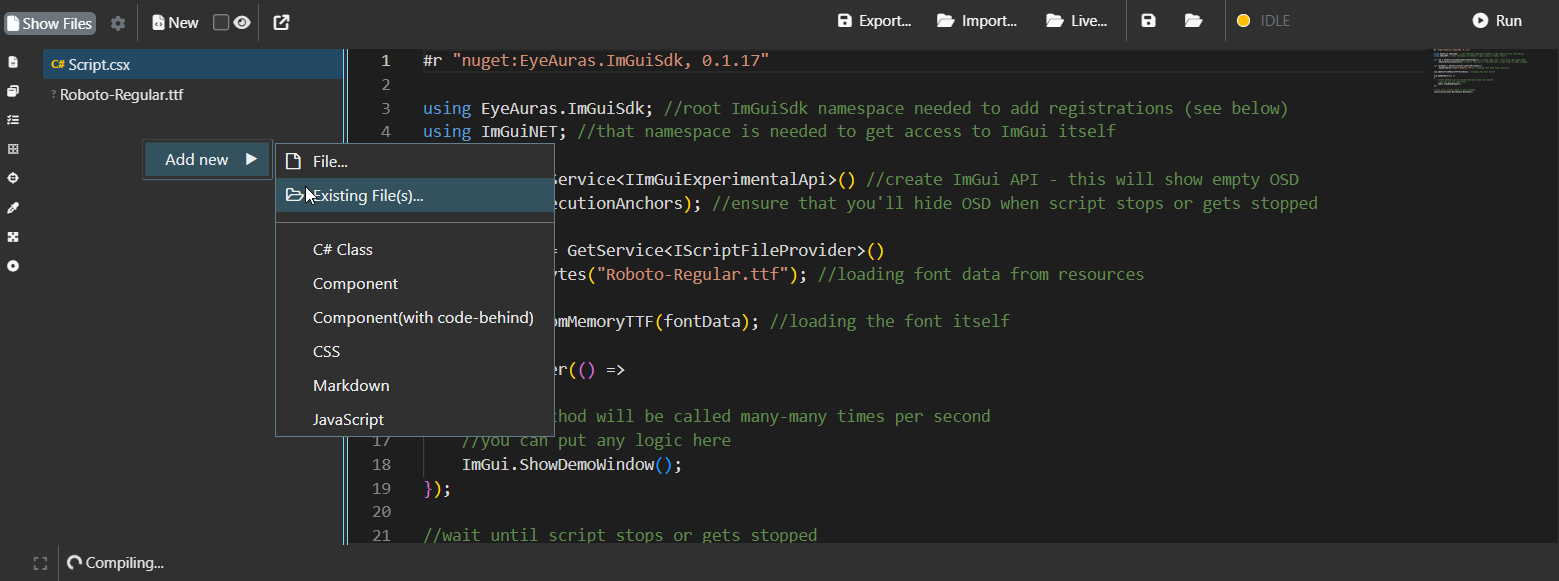
Or via the New button.
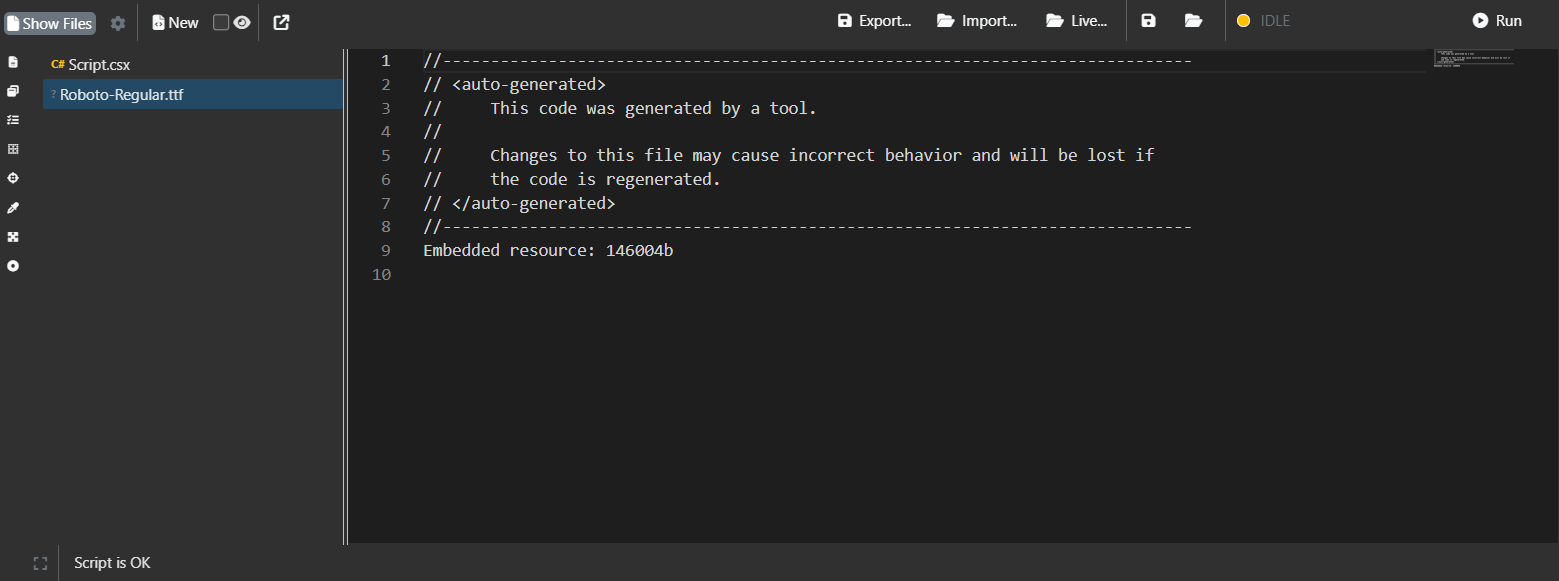
After you add a file, it will appear in the list and can be selected.
¶ How to remove
To remove a resource, just delete the file from the list.
¶ How to use
Now, when the script starts, the files you selected will be loaded automatically and the script will be able to use them.
¶ Via IScriptFileProvider
This method reads the file contents as text or as bytes. What you do with those bytes is up to you.
var fontData = GetService<IScriptFileProvider>().ReadAllBytes("Roboto-Regular.ttf");
¶ Via Blazor
When building UI via Blazor, you can also use files directly. For example, if you added Image 12.jpg to the script, to display it you just write:
<img src="Image 12.jpg" />
Exactly the same way you can show videos, load text, styles, and everything else.
¶ As a referenced DLL
Similar to NuGet packages, you can include a needed DLL directly in the script and still have code completion, type discovery, etc.
All you need to do is:
- add the required .NET assembly to the script, for example, "MyDll.dll"
- in
Script.csxwrite
#r "assemblyPath: MyDll.dll"
That’s it. When compiling the script, EyeAuras will look for a matching DLL among the project’s resources and use it. And when the script runs — it will load it from resources. No loose files lying around.
¶ Export/Import C# Solution
EyeAuras can export a script as a full C# .sln and then you can open it in JetBrains Rider or Visual Studio.
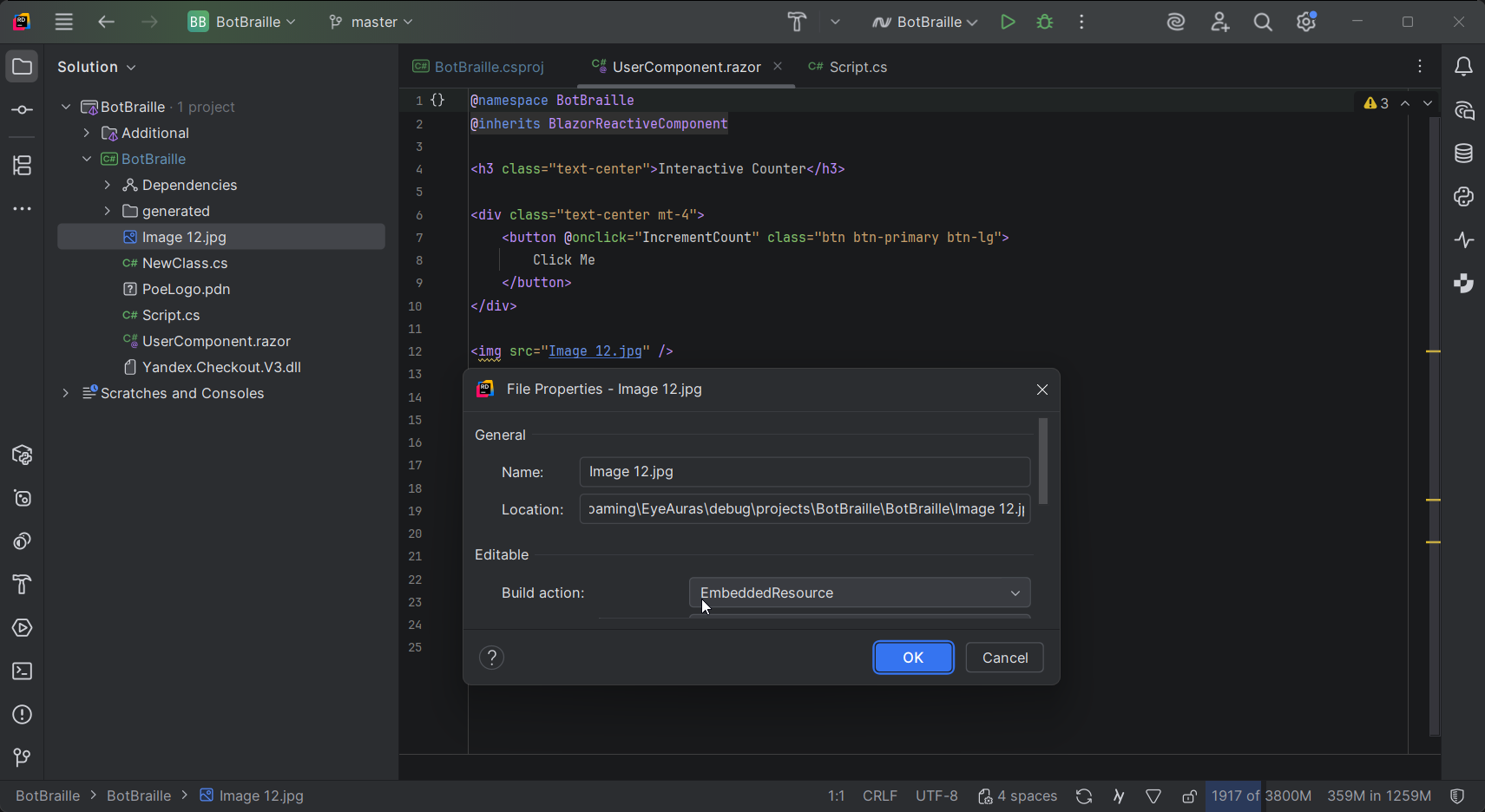
Embedded resources (files) are exported too and marked as Embedded Resource.
For example, in the case of Image 12.jpg, first, the file itself will be exported into the target folder, and second, the exported project file will contain:
<ItemGroup>
   <EmbeddedResource Include="Image 12.jpg" />
   <None Remove="Image 12.jpg" />
</ItemGroup>
This tells the C# compiler to include Image 12.jpg as an embedded resource inside the final DLL.
When importing the .sln back, EyeAuras reads Embedded Resource items and you will see them as files in the list.
In Visual Studio/Rider this is Build Action = EmbeddedResource. If you opened the exported project, you can:
- add/remove files right in the project folder
- in the .csproj specify
for each resource - optionally add
, so the file does not get copied as ordinary content into the output folder
On import back, EyeAuras will scan the .csproj, find all EmbeddedResource items, and show them in the script’s file list. Names and relative paths are preserved — this is important for correct access from code/Blazor.
¶ Under the hood
When building scripts, EyeAuras follows the official compiler’s logic as closely as possible — the files you added will be included as Embedded Resources in the final DLL, visible and accessible via Assembly.GetManifestResourceNames and Assembly.GetManifestResourceStream.
A quick refresher on .NET methods:
- Assembly.GetManifestResourceNames() — returns the full list of resource names like "DefaultNamespace.folder.file.ext".
- Assembly.GetManifestResourceStream(fullName) — opens a stream to read a resource by its FULL name.
A “brute force” example (usually you don’t need this — use IScriptFileProvider):
var asm = typeof(Script).Assembly; // your script’s assembly
foreach (var name in asm.GetManifestResourceNames())
{
    Log.Info($"Resource: {name}");
}

using var stream = asm.GetManifestResourceStream("MyScript.Images.logo.png");
using var ms = new MemoryStream();
stream.CopyTo(ms);
var bytes = ms.ToArray();
In EyeAuras, it’s more convenient to use IScriptFileProvider which maps paths and finds the right resource for you.
¶ Naming
One peculiarity of C# Embedded Resources is that when resources are included in a DLL, the relative path is “folded” and turns into namespace.folder.filename.
How the full resource name is formed during build:
- Take the project’s DefaultNamespace (if not set — the project name)
- Replace slashes in the file’s relative path with dots
- Result: FullName = DefaultNamespace + "." + relative/path/with/dots
Example: project with namespace MyScript and file Images/logo.png → resource: MyScript.Images.logo.png
How to find a resource in EyeAuras:
- You can specify a short path: "logo.png" — the provider will map slashes to dots and search by the suffix (case-insensitive)
- You can specify a subfolder: "Images/logo.png" or "Images.logo.png" — more reliable
- You can specify the FULL name: "MyScript.Images.logo.png" — exact (case-sensitive)
- Separators '/', '\' or '.' are interchangeable in the request
Important about matches and case sensitivity:
- Full name matches strictly and is case-sensitive
- Short/partial paths are searched with EndsWith, case-insensitive
- If your project contains two files with the same tail (e.g., a/logo.png and b/logo.png), a short query "logo.png" will return the first match. To avoid confusion, specify a subfolder or full name.
Examples of queries that work for Images/logo.png:
- "logo.png"
- "Images/logo.png"
- "Images.logo.png"
- "MyScript.Images.logo.png"
EyeAuras tries to make life easier for users and supports both full names (with dots) and relative ones (without namespace). You can also use natural paths like folder/Image 12.jpg instead of folder.Image 12.jpg.
¶ Practical examples (ELI5)
- Read a JSON config as text:
var files = GetService<IScriptFileProvider>();
var json = files.ReadAllText("config.json");
var cfg = JsonConvert.DeserializeObject<MyConfig>(json);
- Load an ONNX/ML model as bytes:
var files = GetService<IScriptFileProvider>();
var model = files.ReadAllBytes("models/my_model.onnx");
// pass the bytes into your ML library
- Open a stream (for large files):
var files = GetService<IScriptFileProvider>();
var file = files.GetFileInfo("video/tutorial.mp4");
using var stream = file.CreateReadStream();
// read in chunks without holding everything in memory
- Show an image in Blazor:
<img src="Images/logo.png" />
¶ Loading a DLL from resources — how it works
-
At compile time
- In Script.csx, add the directive:
#r "assemblyPath: MyLib.dll" - EyeAuras will find the MyLib.dll file in resources and add it as a reference. This enables code completion, type discovery, and successful compilation.
- In Script.csx, add the directive:
-
At runtime
- EyeAuras subscribes to AssemblyLoadContext.Resolving and tries to load the assembly from embedded resources.
Helpful example:
#r "assemblyPath: Newtonsoft.Json.dll"
using Newtonsoft.Json;
Log.Info(JsonConvert.SerializeObject(new { Hello = "World" }));
¶ How to list all available names
- Via .NET API (full names):
var asm = typeof(Script).Assembly;
foreach (var name in asm.GetManifestResourceNames())
{
    Log.Info($"Resource: {name}");
}
- Via file provider (IFileProvider):
var files = GetService<IScriptFileProvider>();
foreach (var fi in files.GetDirectoryContents("/"))
{
    Log.Info($"Found: {fi.Name} ({fi.Length} b)");
}
- If you specifically need the list of manifest names and the service is ScriptEmbeddedResourceFileProvider:
var files = GetService<IScriptFileProvider>() as ScriptEmbeddedResourceFileProvider;
var names = files?.GetManifestNames() ?? Array.Empty<string>();
Log.Info(string.Join("\n", names));
¶ FAQ and nuances
-
File is not found
- Make sure it’s added to the script’s file list
- Try specifying a subfolder: instead of "logo.png" → "Images/logo.png"
- Check case if you use the full name
-
Duplicate names
- If there are two files with the same tail (a/logo.png and b/logo.png), a short query "logo.png" may point to the wrong one. Disambiguate with a subfolder.
-
Large files
- Read as a stream via CreateReadStream() — don’t keep everything in memory
-
I changed the file but don’t see updates
- Embedded resources are baked into the DLL. Restart/rebuild the script so the new bytes make it into the assembly.
-
DLL does not load
- Check that
#r "assemblyPath: ..."points to the correct file.
- Check that
-
Dots or slashes in paths?
- Both work: "Images/logo.png", "Images.logo.png" — the provider normalizes to dots and finds by suffix.