Early alpha feature. It is already usable, but the interface, gateway flows, and some AI capabilities are still changing активно.
¶ AI Assistant
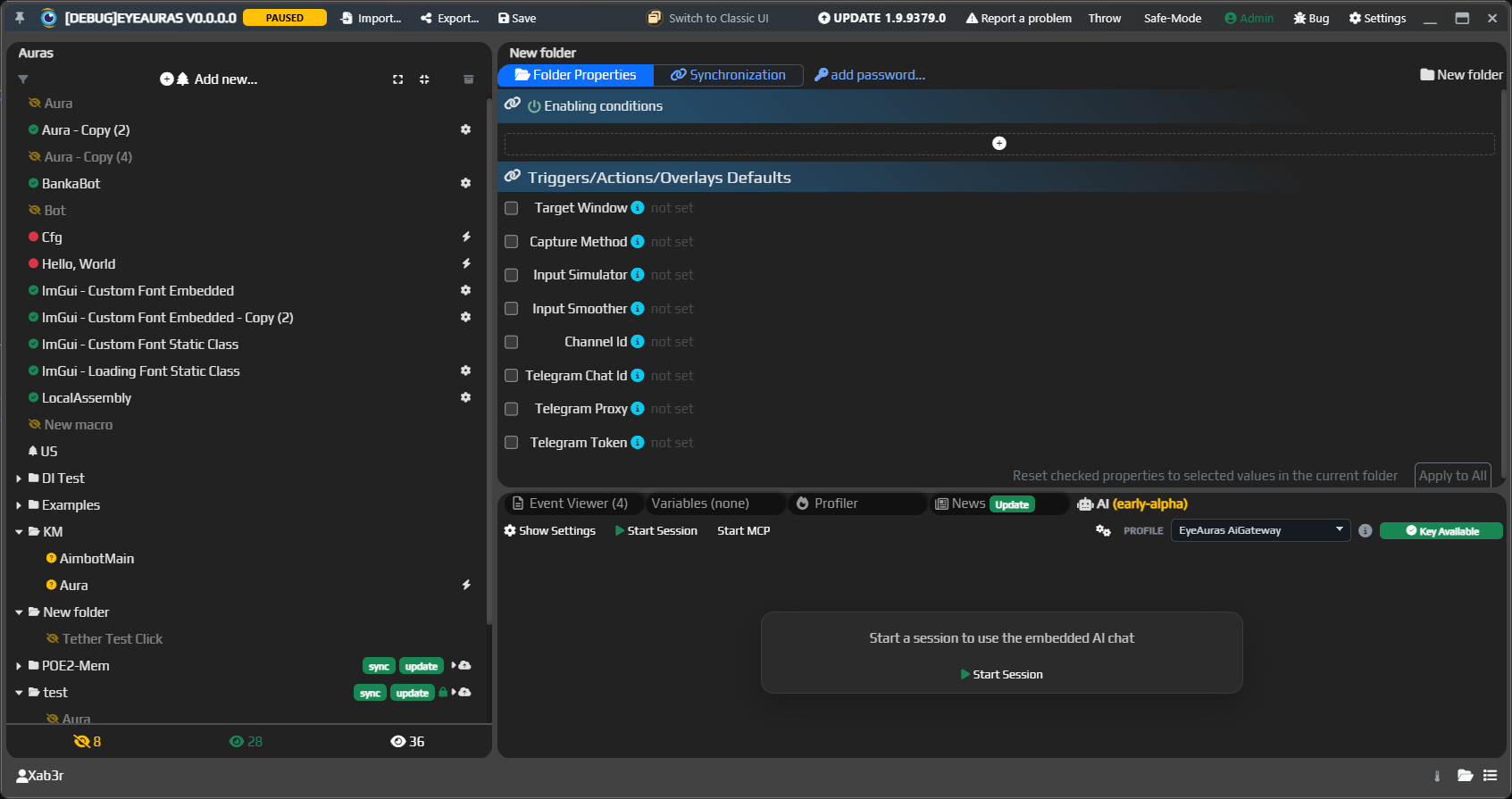
EyeAuras has a built-in AI Assistant as a separate AI tab right inside the app.
At this point, it is no longer just “a chat with a model.” The assistant can use the wiki as context, understands EyeAuras much better, and is increasingly useful for questions about scripting, the API, and configuration.
As the wiki improves, the built-in AI gets better too. In EyeAuras, documentation and AI are evolving together.
If you need more than a quick chat and want a heavier mode specifically for coding tasks, see this separate article:
¶ What is already especially useful
- ask questions about EyeAuras itself and quickly figure out where a setting lives
- find a wiki article or section for a specific topic
- get more concrete help with EyeAuras scripts and API usage
- switch between different AI profiles for different use cases
- use either your own key or
EyeAuras Gateway - prepare
Agent Guidancefor external AI coding tools - run a local
MCP helperwhen you need more precise context
If you want to try it on something practical right away, these are good starter questions:
How do I get the coordinates of a found image?What is the best way to send keys from a script?How should I store an API key for an AI profile in EyeAuras?Where can I read best practices for Script.csx?
Also highly recommended:
¶ Getting started
¶ 1. Open the AI tab
In the new EyeAuras UI, there is a dedicated tab for it.
¶ 2. Choose a profile
A profile defines how EyeAuras talks to the model:
- which provider to use
- which endpoint to use
- which model to use
- where to get the key or token from
In newer builds, you will usually already have a regular OpenAI profile and an EyeAuras gateway profile.
¶ 3. Check the Key Available status
If the profile is configured correctly, you will see a green Key Available status on the right.
If it shows Unavailable, EyeAuras could not get the key or token yet, or the profile is not fully configured.
¶ 4. Click Start Session
This opens the AI chat, and you can start asking questions.
¶ 5. If needed, open Show Settings
This is where the more technical options live: docs knowledge base, local docs cache, MCP, browser automation, and so on.
¶ AI profiles
All connection settings are managed in the Manage Profiles window.
This is the best place to:
- create a new profile
- switch between
OpenAI,EyeAuras Gateway,Ollama, and other OpenAI-compatible endpoints - change the model, endpoint, and key storage method
¶ The simplest setup options
¶ 1. Direct API key
The most straightforward option is to paste the key directly into API Key.
Pros:
- everything is simple and transparent
- you fully control your own budget
- it does not depend on EyeAuras infrastructure
Cons:
- the secret is stored directly in the profile
- for long-term use, an environment variable is usually more convenient
¶ 2. Key via environment variable
This is usually the best option if you already have your own OpenAI key.
Example:
%OPENAI_API_KEY%
Pros:
- the key is not stored in plain form inside the profile
- it is easier to reuse the same key
- it is easier to maintain multiple profiles
¶ 3. EyeAuras Gateway
This is a separate option for users who want to try AI through EyeAuras infrastructure without setting up their own OpenAI account directly.
Right now, this is the closest thing to “free AI” inside EyeAuras, and anyone interested can already join the testing.
To get into the current alpha, just message Xab3r in Discord DM.
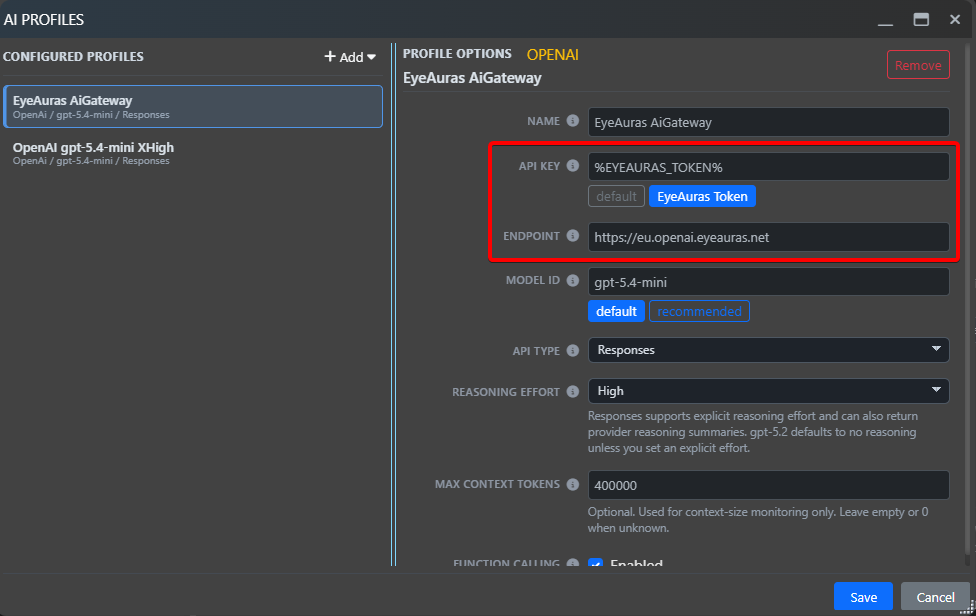
If you configure the profile manually, the basic setup looks like this:
- set
API Keyto%EYEAURAS_TOKEN% - set
Endpointtohttps://eu.openai.eyeauras.net
In newer builds, the gateway profile is usually created by default, so in most cases you do not need to configure anything manually.
A few important things to understand right away:
- the gateway is still evolving
- work is in progress to provide free limits to all app users
- later, if you want more limits, that will be refillable through the website
- at the same time, the option to use a normal OpenAI endpoint with your own key is not going away
This is an important part of the overall idea.
EyeAuras Gateway is not meant to replace your own OpenAI key, and not a way to lock everyone into one setup. It is primarily about convenience, easier onboarding, and solving OpenAI access issues for users in Russia.
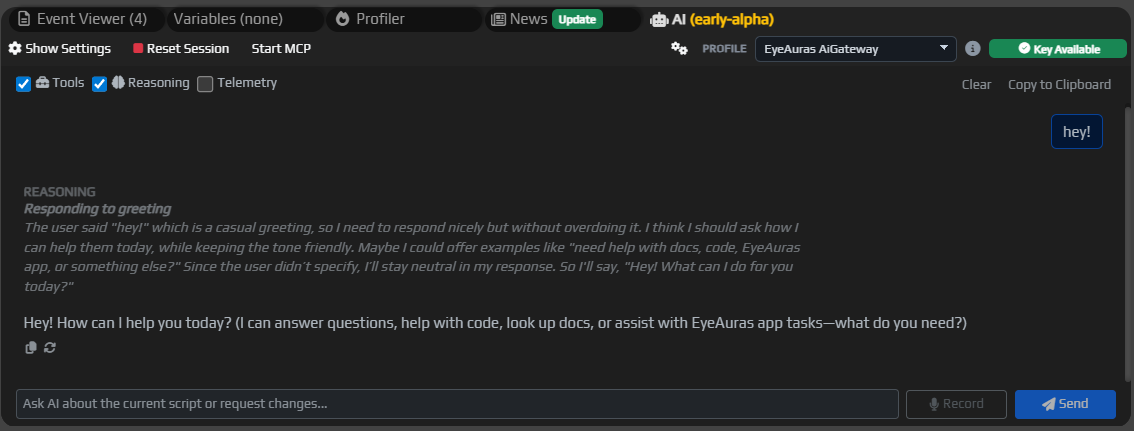
Here is what the chat looks like through the gateway inside EyeAuras:
¶ OpenAI-compatible endpoints and local Ollama
In addition to OpenAI, EyeAuras also works with OpenAI-compatible APIs.
The clearest example is local Ollama.
A typical setup looks like this:
Endpoint:http://localhost:11434/v1Model Id: for examplellama3API Key: usually not needed
This is useful if you want to:
- run the model locally on your own computer
- avoid depending on an external API
- experiment freely
¶ What the profile settings mean
Below is a quick explanation of the main fields in Manage Profiles.
¶ Name
The profile name shown in the list.
It is best to use clear names, for example:
OpenAI gpt-5.4GatewayOllama local
¶ API Key
The source of the secret or token.
This can be:
- the key itself
- an environment variable, for example
%OPENAI_API_KEY% %EYEAURAS_TOKEN%for theEyeAuras Gatewayflow
¶ Endpoint
The API address.
For regular OpenAI, it is usually best not to change it. But it is needed for:
- EyeAuras Gateway
- Ollama
- self-hosted proxy
- any other OpenAI-compatible endpoint
¶ Model Id
The model identifier, for example gpt-5.4, gpt-5.4-mini, or llama3.
If you are not sure, it is best to keep the recommended value from the template.
¶ API Type
This defines which API EyeAuras will use to send requests.
The simple way to think about it:
Responses— the more modern optionChatCompletions— compatibility mode
¶ Reasoning Effort
Controls how deeply the model will “think” before answering.
If you do not want to tune it, just keep the default template value.
¶ Max Context Tokens
A service field for local control over context size.
Most users can leave it alone.
¶ Function Calling
Allows the model to use EyeAuras built-in tools.
In most cases, it is best to keep this enabled, because this is how the AI gets access to docs, session memory, and other useful capabilities.
¶ Key Available
A quick indicator that the profile is ready to use.
If the status is red, the cause is usually one of these:
- the environment variable name is wrong
- there is no available token yet for
%EYEAURAS_TOKEN% - the endpoint for
Ollamaor the gateway is missing
¶ Show Settings window
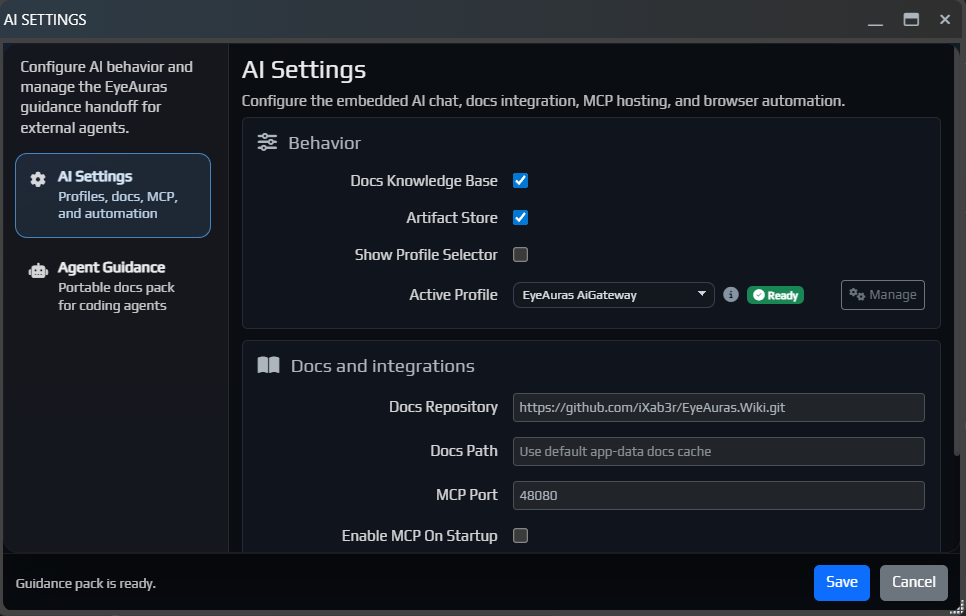
This is what the AI settings window currently looks like:
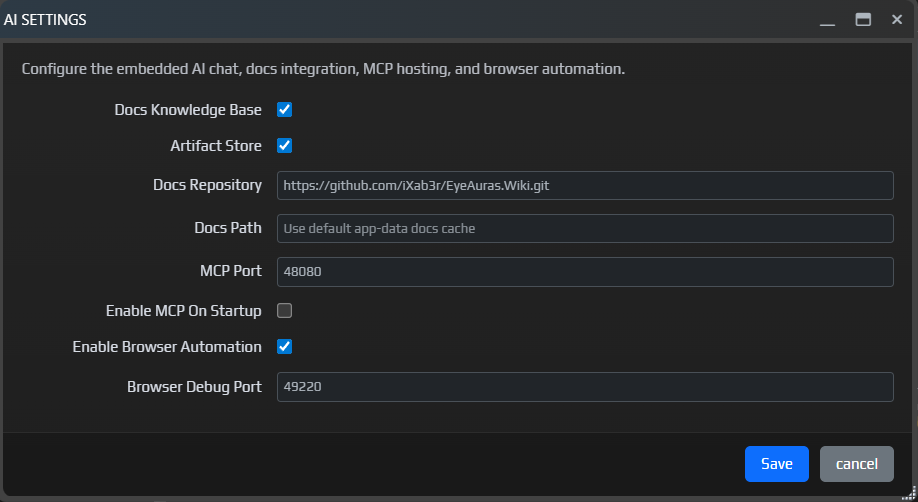
This is where the more technical settings live:
Docs Knowledge Base— enables the local wiki knowledge baseArtifact Store— allows the AI to save artifacts if the backend supports itDocs Repository— the git repository used to pull the wikiDocs Path— the local path for the docs cacheMCP Port— the local MCP server portEnable MCP On Startup— automatically start MCP after the app launchesEnable Browser Automation— enables the browser automation layer for AI toolsBrowser Debug Port— browser debugging port for automation flows
For the usual “ask something about EyeAuras” scenario, you normally do not need to change anything here.
The most practical points:
Docs Knowledge Baseis best kept enabledBrowser Automationrequires an app restart after savingDocs Pathonly matters if you deliberately want to move the local docs cache
¶ Agent Guidance
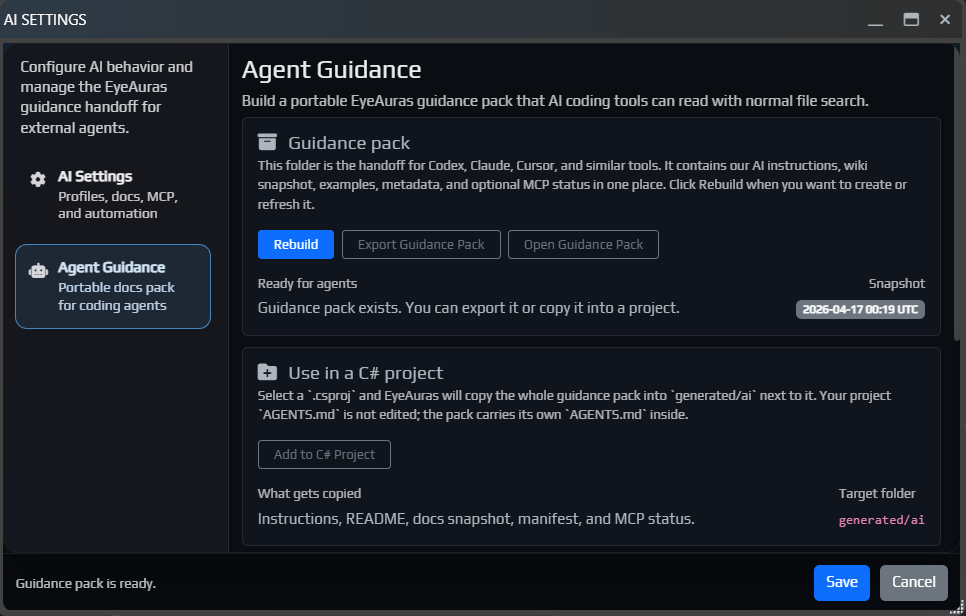
Agent Guidance is a page inside Show Settings that helps external AI coding tools understand EyeAuras better.
In simple terms, instead of re-explaining every time what EyeAuras is, where the wiki is, which APIs to use, and how to connect to MCP, EyeAuras builds a ready-to-use guidance-pack folder.
You can open this folder, save it as an archive, or place it next to a C# project or .sln. Your project-level AGENTS.md is not touched — all instructions live inside the guidance pack itself.
This is useful if you work with:
- Codex
- Claude Code
- Cursor
- another AI agent that can read
AGENTS.md - a C# project or exported workspace that uses
EyeAuras.SDK/ ref assemblies
What EyeAuras does:
- builds a local guidance pack with wiki content, examples, SDK notes, metadata, and MCP status
- places an
AGENTS.mdinside as the entry point for the AI agent - includes
README.md,manifest.json,mcp-status.json, and adocs/folder - can save the entire pack as a zip archive
- can copy the entire pack into a C# project or solution under
generated/ai - does not modify your project
AGENTS.mdand does not overwrite your own rules
A practical workflow:
- Open
AI->Show Settings->Agent Guidance. - Click
Rebuildto create or update the guidance pack. - Click
Open Guidance Packif you want to inspect the folder manually. - Click
Export Guidance Packif you want to save the pack as a zip archive. - Click
Add to C# ProjectorAdd to Solutionif you want to copy the pack next to the selected.csprojor.sln. - Open
generated/aior the exported folder in your external AI coding tool.
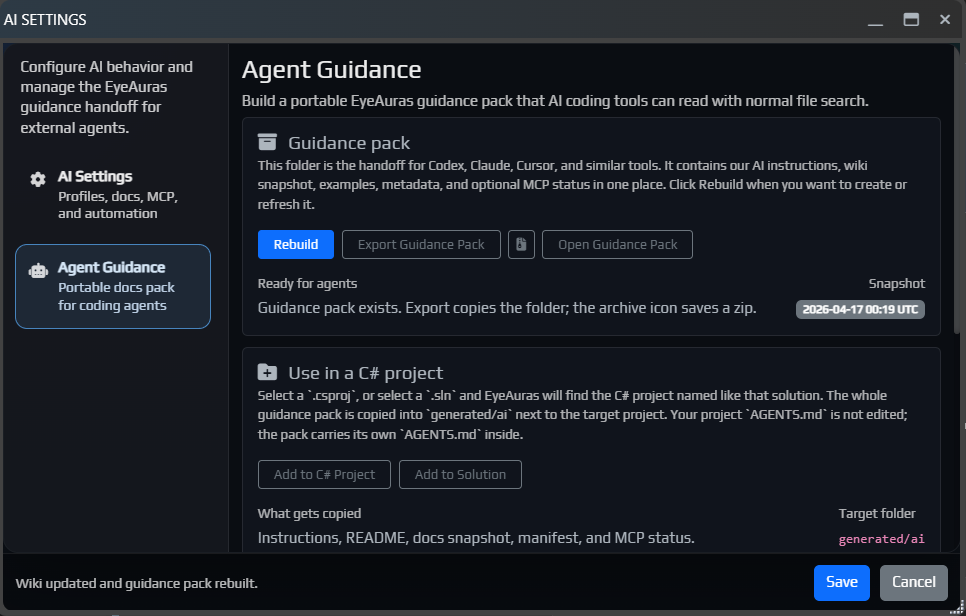
When adding it to a C# project, EyeAuras copies the pack into:
generated/ai
If you select a .sln, EyeAuras will try to find a C# project with the same name as the solution and place the guidance pack next to it.
Inside this folder, there is its own AGENTS.md, so the agent can start there and then continue through docs/.
The generated/ai folder is considered EyeAuras-managed and is fully replaced on each repeated Add to C# Project / Add to Solution. Do not store your own files there.
If you turned MCP on or off, click Rebuild so the fresh MCP status is written into the guidance pack.
Important: Agent Guidance does not replace your project rules. It is better thought of as a portable folder with EyeAuras context. If your project already has its own rules, they remain yours, and EyeAuras does not edit them.
¶ MCP helper
You can think of MCP as a small local bridge between EyeAuras and the AI agent.
A regular guidance pack gives the agent documentation and rules. MCP helper adds a live endpoint that lets the agent ask more precise questions to EyeAuras itself — for example, about the current app state, windows, or available objects/symbols.
For simple tasks like “explain this setting” or “find an article,” MCP is usually not needed. It becomes useful when the external agent needs not only to read docs, but also carefully query EyeAuras about the current state.
¶ What already works well today
¶ 1. Documentation questions
This is still the most useful mode.
If the question can be grounded in the wiki, the built-in AI usually answers better and with more confidence.
¶ 2. Scripting help is noticeably better
The assistant is getting much better at understanding EyeAuras-specific context instead of only giving generic “C# advice.”
That is why these are especially useful now:
- EyeAuras API articles
- examples from the scripting section
- FAQ and best practices
¶ 3. A proper in-app chat already exists
There is already a full working layer inside the app:
AItab- profiles
- endpoint switching
- session start
- tools / function calling
- docs knowledge base
¶ 4. EyeAuras Bot on Discord is developing in parallel
If you want similar help outside the app, directly in Discord, there is now a separate public alpha:
¶ 5. There is now a separate Codex mode for more technical coding tasks
If the regular AI chat is more of a reference tool and quick helper, Codex is aimed more at complex tasks, separate threads, and deeper work with technical context.
¶ Things to keep in mind
- this is still alpha
- answer quality depends directly on the quality of the wiki
- the AI can suggest a direction and provide an example, but it does not “verify on your machine” that the code really ran
- if the question is too broad, it helps to specify the build, the feature name, and what result you want
¶ FAQ
¶ Do I need an OpenAI account
Not necessarily.
The main options are:
- use your own OpenAI key
- use local
Ollama - use
EyeAuras Gatewayif you have access to the current alpha
¶ Do I have to use EyeAuras Gateway
No.
It is an extra convenience option, not a required setup.
If you want full control over costs, use your own key and a normal OpenAI endpoint.
¶ Where should a normal user start
The simplest path is:
- open
Manage Profiles - choose the regular
OpenAIprofile or the EyeAuras gateway profile - check
Key Available - click
Start Session
¶ Why does it show Unavailable
Usually the cause is one of these:
- EyeAuras could not find the key from the specified environment variable
%EYEAURAS_TOKEN%is not available yet- the endpoint is incorrect
- for
Ollama, the local server is not running