EyeAuras Integration
How to use an ONNX model in ML Search and Behavior Tree
EyeAuras Integration
YoloEase prepares the model. EyeAuras captures the image from the screen, runs ML Search, selects the detected class, and performs actions through a Behavior Tree.
On older or related EyeAuras pages, you may still see the name AI Search Trigger. For this workflow, it means the same core idea: a computer vision trigger that loads an ONNX model and returns detected objects.
Useful links
- Recorded session
- Ready-made EyeAuras pack
- AI Search Trigger
- Image capture triggers
- Behavior Trees
- Selector node
- Sequence node
- Mouse Move node
- Key Press node
Recommended workflow
- In EyeAuras, open the preview for the CV trigger that can see the area you need.
- Click
Save Videoand record a short real gameplay clip. - In YoloEase, add the video with
Add Video.... - Extract frames with
Extract frames. - Label the first tasks and train the model.
- In
Trainer, clickOpenon the result and find the.onnx. - In EyeAuras, load that
.onnxintoML Search. - Turn on
Enable OSDand verify the boxes before enabling any clicks. - Configure
ML Find Classfor the label you need, for exampletgt. - Start by moving the mouse to the detected object, then add the click action.
.pt is not used by ML Search - that file is for training and fine-tuning. In EyeAuras, select the .onnx.
Load the ONNX model
In EyeAuras, add or open ML Search, click the model load button, and select the .onnx file from the YoloEase output folder.
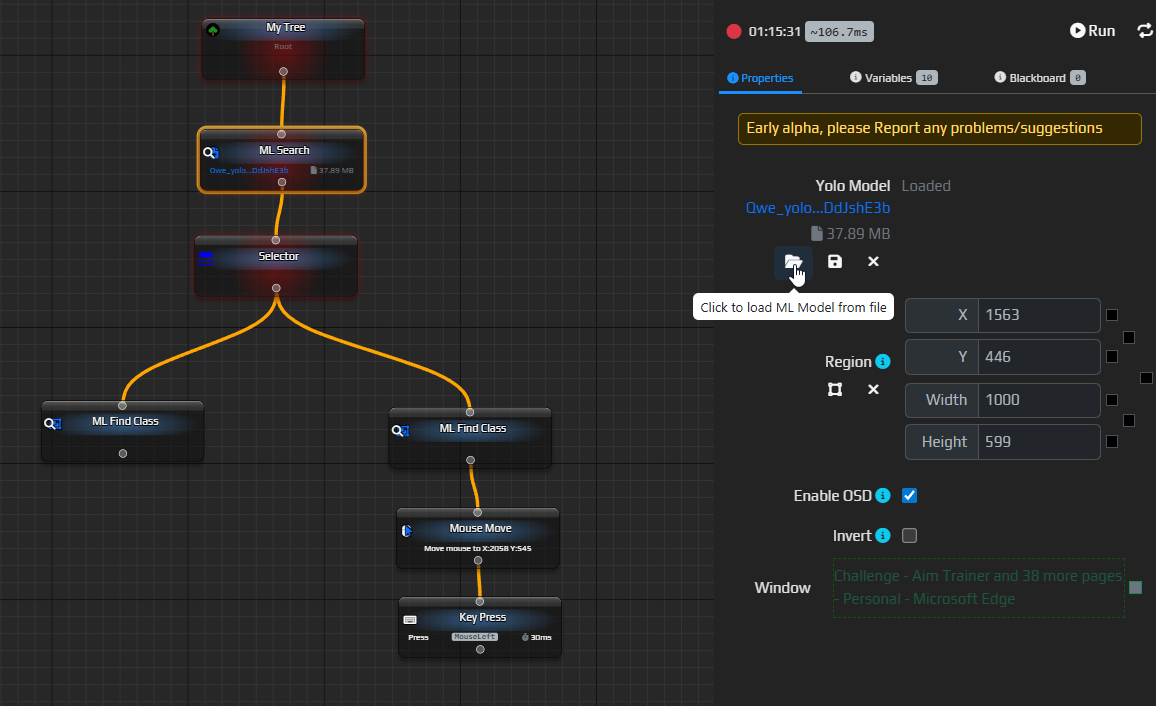
After loading, check that:
- model status is
Loaded; - the capture region matches what was used in the training data;
- the correct window is selected;
Enable OSDis turned on for debugging.
If the capture region is very different from the frames the model was trained on, quality can drop sharply. The model sees pixels, not user intent.
If effects were enabled in EyeAuras while recording the video, enable the same effects before ML Search during real detection. Otherwise the model will see a different input, and quality can drop even if training metrics look good.
ML Find Class
ML Search only detects objects. To use a specific class in the tree, add ML Find Class.
For tgt, these settings are usually useful:
ClassorLabel=tgt;Selection Strategy=Closestif you want the target nearest to the cursor;Closest To=Cursor;- confidence threshold around
70%or higher after your first checks; Width MinandHeight Minto filter out tiny false positives.
For btn, you can create a separate ML Find Class and use it as a blocking condition: if the button is visible, the game is already over and there is no need to click tgt.
Basic Behavior Tree
Minimal setup:
ML Searchupdates predictions.ML Find Classfinds the required label.Mouse Movemoves the cursor to the detected object.Key Press MouseLeftclicks.
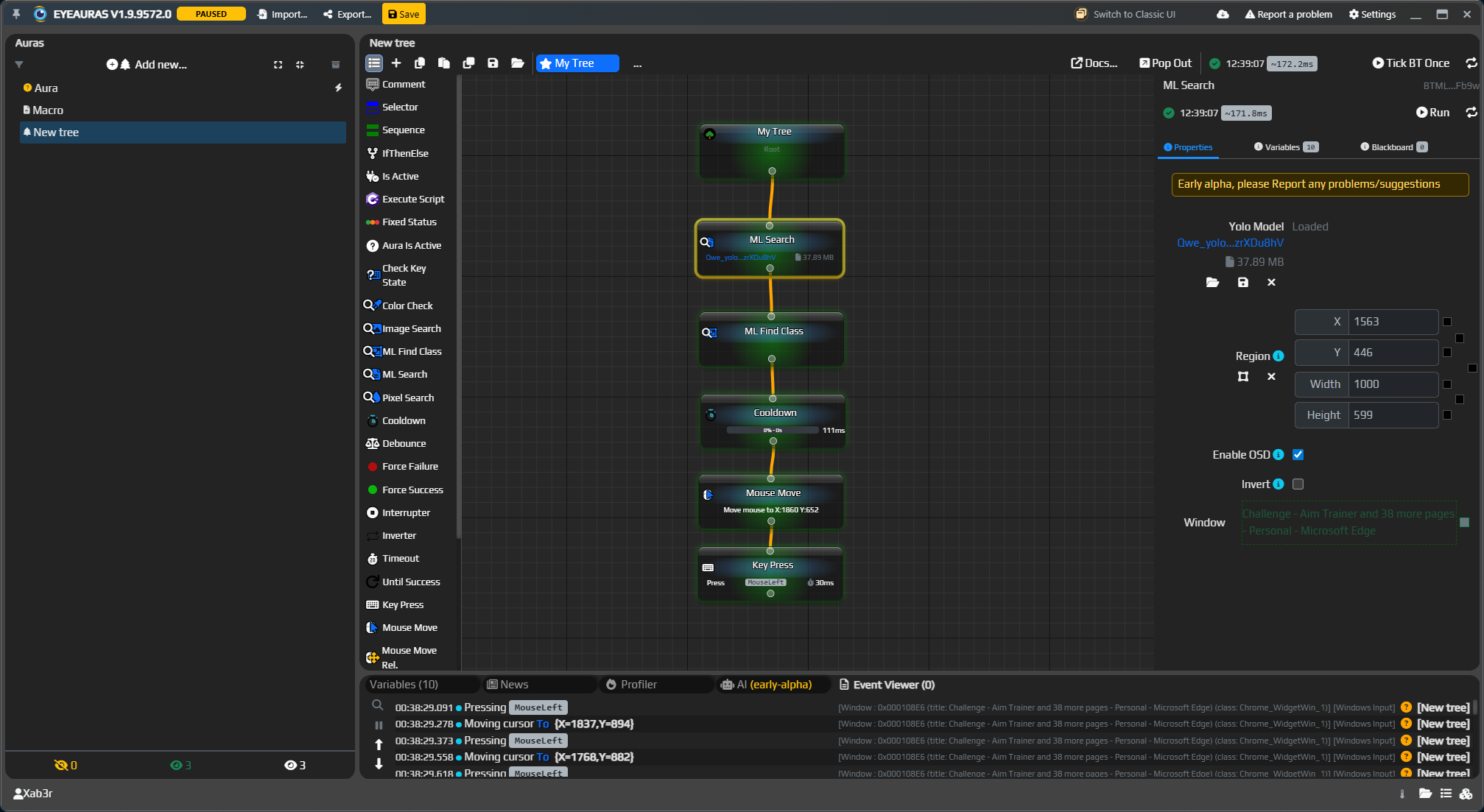
This is enough for simple cases, but real scenarios almost always need conditions.
Make the first run safe: start with OSD only, then add Mouse Move, and only add clicking after you verify the result. That lets you catch model mistakes before the automation starts acting on them.
Final demo logic
In AimTrainer.io, you cannot just click any detected object:
- if the
btnbutton is visible, the game is already over and targets should not be clicked; - very small detections may be false positives;
- it is usually more convenient to choose the target closest to the cursor.
The final Behavior Tree uses a Selector, a separate btn check, tgt detection, a confidence filter, and size filters.
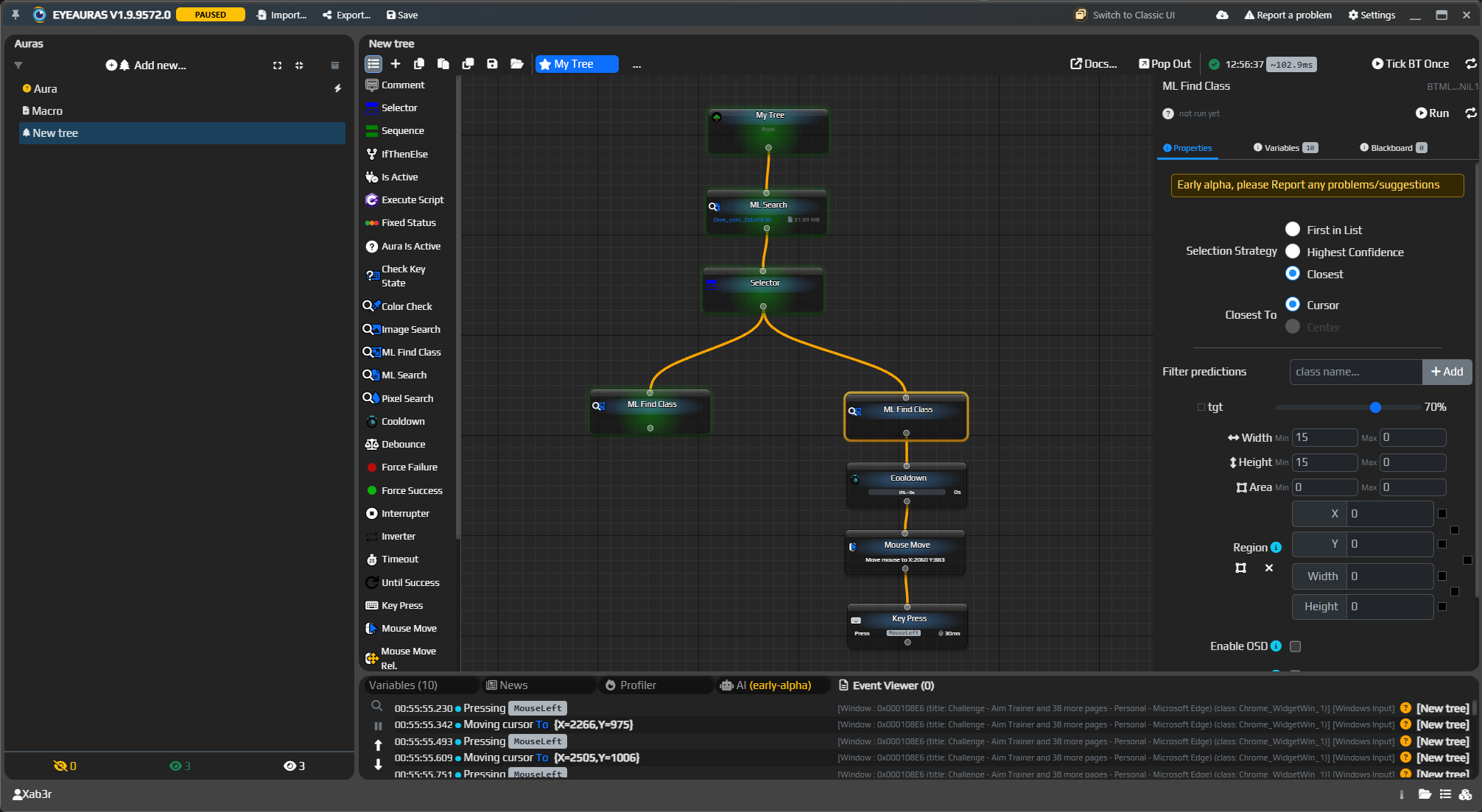
Useful ML Find Class settings for tgt:
Selection Strategy=Closest;Closest To=Cursor;- confidence threshold around
70%or higher; Width MinandHeight Minto filter out tiny false positives.
Verify the result
First, watch the OSD and make sure the boxes are placed on the correct objects. Only then enable click actions.
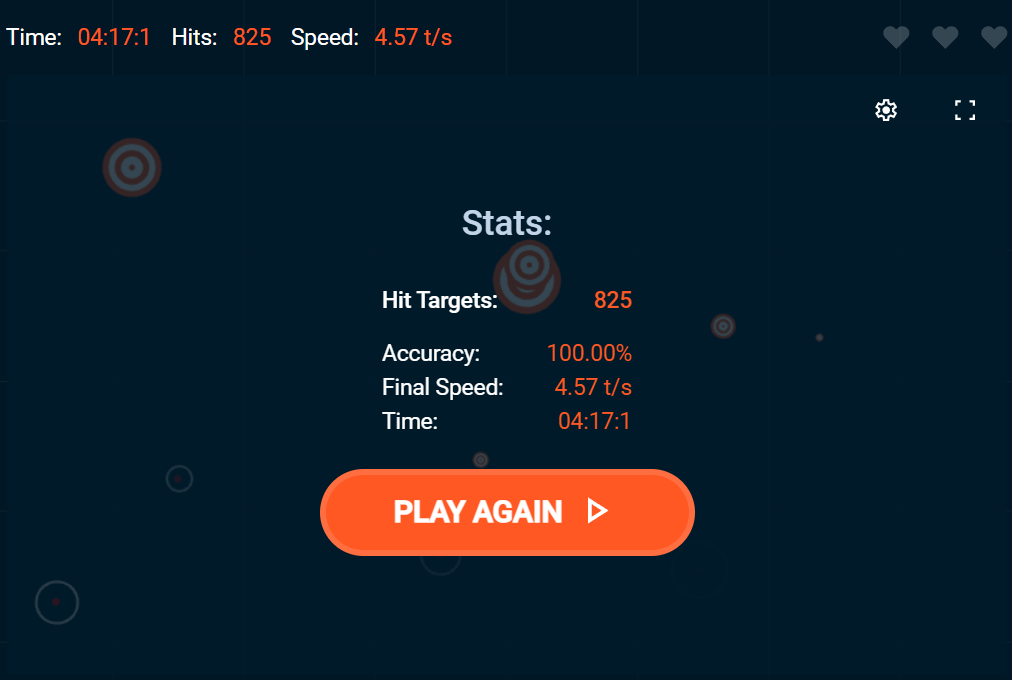
Final demo result:
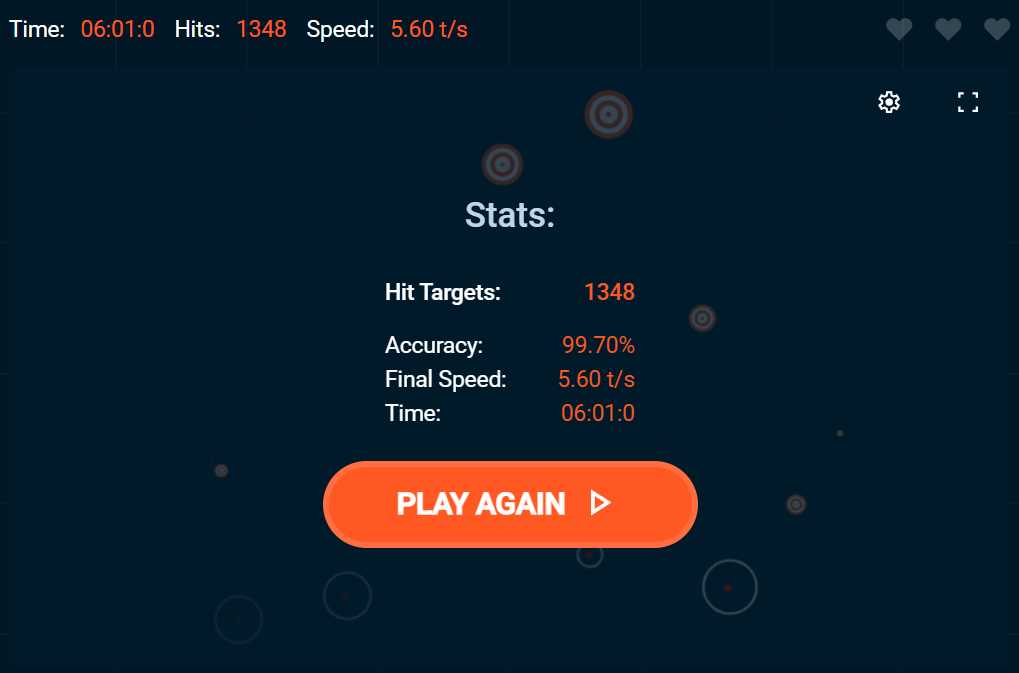
If EyeAuras makes mistakes, the tree is not always the problem. Often you need to go back to YoloEase, add frames with those mistakes, fix the annotations, and train a new model generation.
Error-fixing loop
| Problem in EyeAuras | What to do in YoloEase |
|---|---|
| The model sees a target where there is none. | Record a short video showing the mistake and add negative frames without extra boxes. |
| The model misses a target. | Add similar real frames and label the target. |
| The box is positioned incorrectly. | Fix the boxes on similar frames and fine-tune the model. |
The model confuses btn and tgt. | Add counterexamples for both classes and make sure the labels are not mixed up. |
| Everything looks good in YoloEase, but bad in EyeAuras. | Check the capture region, window scale, effects, OSD, and that the latest .onnx is loaded. |
See also: YOLO ONNX and model weights, Trainer, annotation editor, diagnostics.