Known Issues
Common EyeAuras issues and how to fix them
This page collects rare but real issues that EyeAuras users may run into, along with proven ways to fix them.
EyeAuras says WebView2 is not installed
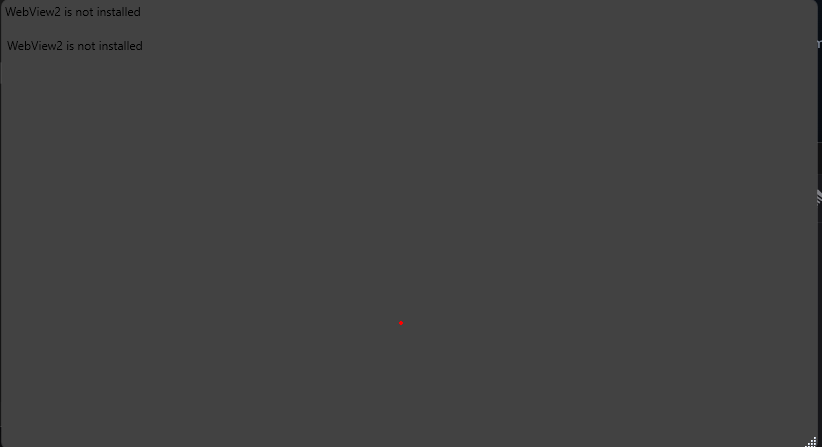
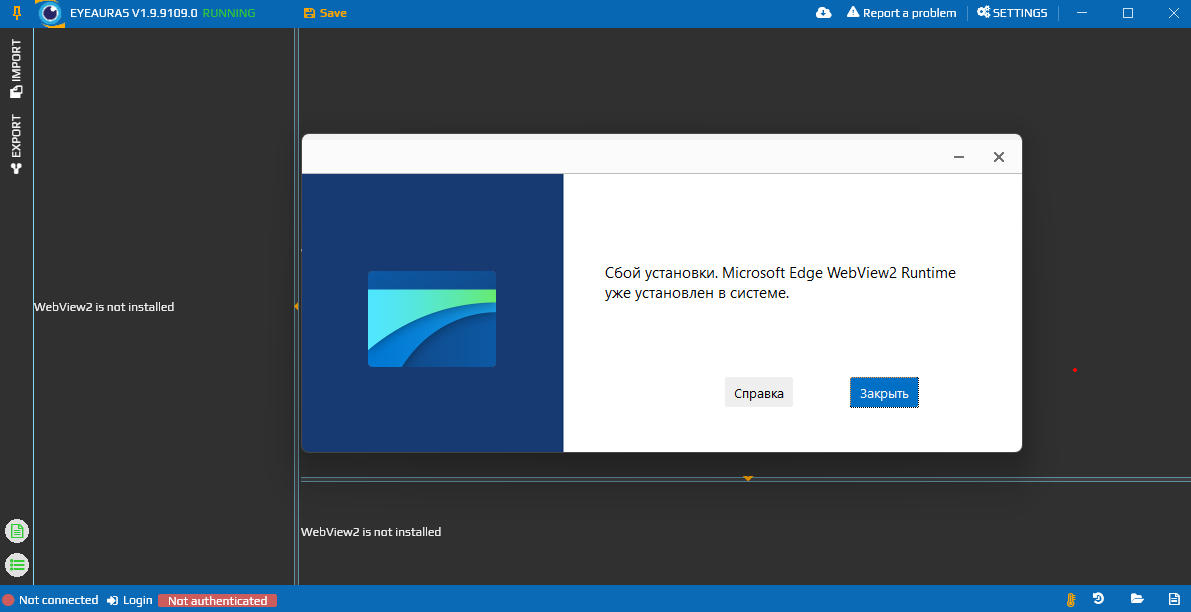
This is a rare issue. In this state, EyeAuras may show
WebView2 is not installed, while the built-in Microsoft installer says thatMicrosoft Edge WebView2 Runtime is already installed on the system.
Why this happens
On some systems, WebView2 may be installed incorrectly, become corrupted, or require elevated permissions to repair. As a result, Windows thinks WebView2 is already present, but EyeAuras cannot detect or use it correctly.
What to do
- Close EyeAuras.
- Download the official Microsoft Edge WebView2 Runtime installer:
WebView2 download page - If you need the direct installer link, use:
download WebView2 Runtime installer - Run the installer as Administrator.
- If the installer says WebView2 is already installed, still complete the installation with administrator rights. In a real case, this was exactly what fixed the problem.
- Start EyeAuras again.
If that did not help
- Restart your PC and repeat the steps above.
- If the problem is still there, open Report a problem and send the logs.
Important
This does not necessarily mean WebView2 is actually missing from your system. Most often, it is a detection issue or a damaged installation, and rerunning the installer as Administrator fixes it.
EyeAuras says Not connected and will not let you sign in
This is usually not several different bugs. In most cases, it is the same network-related scenario: EyeAuras cannot connect to the Eye Hub server.
What it looks like
Not connectedis shown in the bottom-left corner- the app cannot sign you in
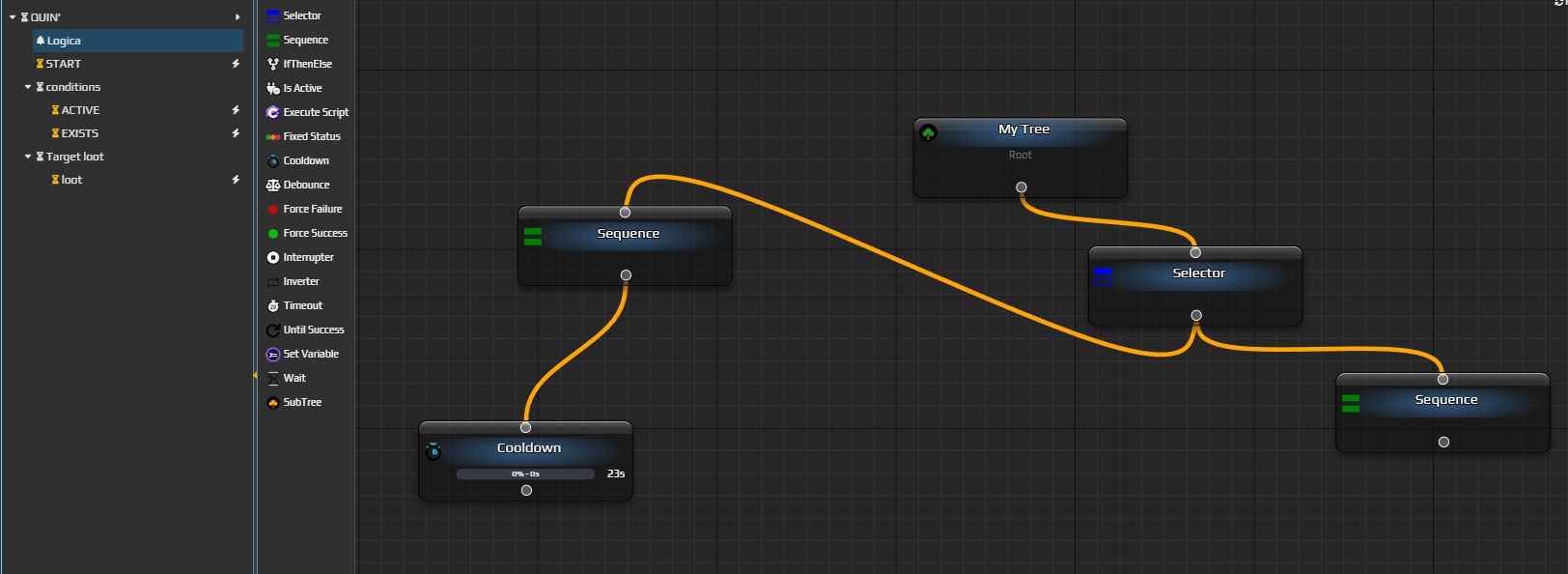
- auras show hourglasses instead of ready icons
- the actions, triggers, or overlays list is empty
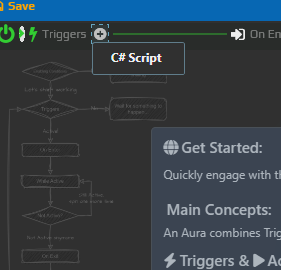
- the list shows only
C# Script, or a very limited set of items
Why this happens
EyeAuras uses the Eye Hub server infrastructure for authentication, loading some data, and other network-related features. If the app cannot reach the server, all of the symptoms above can appear.
Most of the time, the cause is not EyeAuras itself, but network restrictions such as:
- ISP-side blocking
- unstable routing
- a system proxy
- a VPN that breaks the route
- antivirus, firewall, AdGuard, or other filtering software
Right now, EyeAuras has two main hubs:
- a European hub, with servers in Germany (Frankfurt) and Finland (Helsinki)
- a hub in Russia (Saint Petersburg)
Newer versions include automatic server selection. It can switch between available regional Eye Hub endpoints if the main route is not working.
Read more:
What to do
- Fully close EyeAuras and launch it again.
- Make sure you are using a recent enough version of EyeAuras (9339+), where automatic hub selection is already available.
- If your settings include an option related to
Auto-select Server Locationor automatic server selection, turn it on. - If you use a system proxy, VPN, AdGuard, corporate firewall, or antivirus web filter, temporarily disable it and try signing in again.
- If the problem is caused by ISP blocking, the opposite can also help: enable a VPN and try again.
If that did not help
- Try a different network or a VPN.
- Update EyeAuras to the latest version.
- If the problem continues, open Report a problem and send the logs along with a description of your network, ISP, and country.