Copy your own reminder set without replacing it
Export a small linked set to local JSON, inspect Import Preview and create an independent copy.
Experiment on a copy of your own reminders
Make a local copy of a two-aura set, then change the copied reminder without changing the original. This is a configuration transfer exercise, not publication or importing unfamiliar code. You need a writable local directory and permission to export your own contents.
Prepare a small linked set
- At an empty place in the tree, create New folder named Transfer test. Inside it create New Aura → Allow reminder, with Triggers → Fixed Value → Is NOT Active and no actions or overlays.
- Create another child aura Reminder. Add Aura Is Active in Triggers; in Links, select only Allow reminder from this folder, require Active, and choose All must match (AND).
- In Reminder, add Text under Overlays: Content
Original reminder, Font 24, Size to fit off, Window → Mode → Overlay. Unlock to position it, then enable Locked and Clickthrough. Add no actions to either aura. Keep the auras loaded and enabled and EyeAuras unpaused for the later comparison. Leave Allow reminder inactive so the original and exported copy start without a displayed reminder outside editing preview.
Save JSON and choose Copy
-
Select the Transfer test folder and open Share/Export with the export button or Ctrl+S. In Content, verify that the folder and both children are included.
-
Inspect Missing linked objects detected if it appears. Our one link should point inside the selected folder. If you intentionally added a source outside it, either include that source with Add linked objects and recheck Content, or deliberately retain the external dependency. Do not assume all neighboring items are included.
-
Choose Destination → Local export → Save to file... and save
reminder-copy.jsonin your own directory. Close the export window. This route saves locally; it is not Publish and does not need a share link.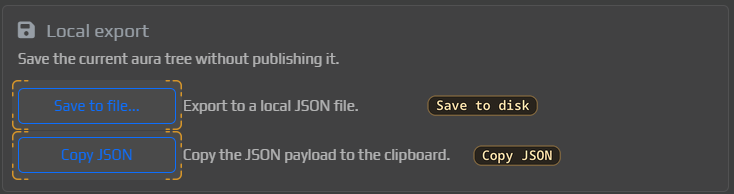
In Local export, choose Save to file… and select a directory for reminder-copy.json.
-
Click Import, choose Source → Import from file → Open..., and select your JSON. Inspect Preview for the folder, two auras and their stored paths. Selecting a folder before opening this dialog does not choose a new import destination.
-
Because the originals still exist, open Import Options and choose Copy when the conflicts are shown. This imports copies with separate identities and adjusted conflicting paths. Do not choose Replace: it replaces existing items rather than merging settings. Ignore Conflicts would skip conflicting incoming objects.
| Choice | Result for this exercise |
|---|---|
| Copy | Keep the original set and add copies |
| Replace | Replace conflicting original objects; not the intended operation |
| Ignore Conflicts | Skip conflicting incoming objects; not an independent full copy |
Check that the copy is independent
- Find the new folder and identify it by its adjusted path. In the copied Reminder, open Aura Is Active → Links and use the link's navigation control to confirm that it points to the copied Allow reminder, not the original. Inspect any bindings the set contains in the same way. Keep both switches inactive until these checks are clear.
- Change only the copied Text Content to
Copied reminder; position it separately and lock it. Confirm the original still saysOriginal reminder. - Set the copied Allow reminder to Is Active, select an unrelated aura and leave the editor. Only Copied reminder should appear; the original switch remains Is NOT Active. Return the copied switch to Is NOT Active to hide it again.
Export/import handles the JSON and conflict choice. Aura Is Active makes the copied dependency visible, while Bindings explains any property sources you also transfer. Known internal references can be remapped; arbitrary strings in code, external paths and references to objects outside the copied set are not automatically repaired. Copying JSON is not a promise of lossless compatibility between every version. Review settings and embedded resources before sharing a file; export does not automatically remove secrets.