Watch a live crop from your own status window
Mirror a changing line from your own window without replacing it with a static screenshot.
Watch one changing area of your window
Keep a live copy of a small source area beside another task. Use your own Notepad document with the line Status: 10; changing it to Status: 20 makes the expected result easy to recognize. Replica mirrors that line's pixels. It does not parse the number or infer completion.
Open one Notepad window, put the line near the top of your own document, and keep it restored. Arrange a second working window beside it. You need a source window whose live thumbnail is available; a closed, protected or minimized source may not provide a usable, updating picture.
Choose visibility and source separately
- Right-click an empty area of the tree, choose New Aura, and name it Live status crop.
- In Triggers, click + and add Window Exists. Set Target Window to
notepadand verify the selected window information. This condition controls whether the aura is active while the window exists; it does not supply Replica with a captured frame. - In Overlays, click + and add Replica. In the overlay's own Replica section, set Target Window to
notepadtoo. Confirm that the intended source window is matched there independently. - Leave Linked auras empty for this manual setup. Click Source region → Select region and select a rectangle around the source line. It is a region in the source window's client area, in physical pixels. Leave Source offset at zero and Source anchors at their defaults. Do not enter the overlay's destination position as the source region.
| Replica setting | Value |
|---|---|
| Target Window | notepad |
| Source region | Rectangle around your Status line |
| Source offset | Zero |
| Linked auras | Empty |
| Window → Mode | Overlay |
-
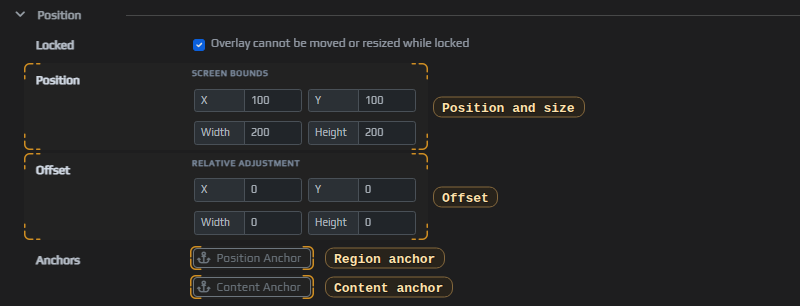
Under common Position options, turn Locked off and move the replica beside your second working window. Enable Visual style → Aspect Ratio and resize the copy until the line is readable without stretching it. Display size changes the copy you see, not the selected source region; its numeric dimensions need not equal source physical pixels at a different DPI. Then turn Locked and Clickthrough on.
-
Keep the aura enabled and EyeAuras unpaused, select another aura, and return to your working window. The replica should show Status: 10. Edit the source line to Status: 20, then return to work: the copy should update. Avoid scrolling the line out of the chosen region.
-
Close the matching Notepad window: Window Exists should become Not Active and the locked replica should disappear outside editing preview. If you reopen or recreate the source, check its match and region again.
Replica owns the source selection and live crop; Window Exists supplies the presence condition; common options place the copy. Linked auras is an alternative way to obtain a source window and region from an appropriate aura, not a requirement for this recipe. Do not assume a presence condition alone supplies a usable live frame.
If you see the whole source, select a nonempty region again; Source region → Reset returns to the whole-window setup. If the copy stops updating, inspect source availability before changing display size. Clicking the replica does not forward input into the source window; Clickthrough passes mouse interaction to the window underneath the overlay. For a card that never needs live updates, use the static reference recipe.