Show a recording checklist only in your notes window
Display a fixed preparation checklist while your own notes window is in the foreground.
Keep your recording checklist beside your notes
Show three preparation reminders while you work in Notepad, then hide them when you switch applications. The condition checks the foreground window. It does not detect whether a recorder is running or whether you completed the checklist.
Have EyeAuras open and one Notepad window containing your own notes. Use only one Notepad window for this setup so the expression notepad has an unambiguous target. No script, capture or recording integration is needed.
Create the reminder
-
Right-click an empty area of the EyeAuras tree and choose New Aura. Name it Recording checklist.
-
In Triggers, click + and add Window Is Active. Set Target Window to
notepad. Check that the selected window information identifies your notes window; window matching explains how to narrow it when several windows match. -
In Overlays, click + and add Text. Enter these three lines in Content, using actual line breaks:
Check microphone,Choose recording file,Review notes. This is fixed text you type into the overlay, not a binding to Notepad's document.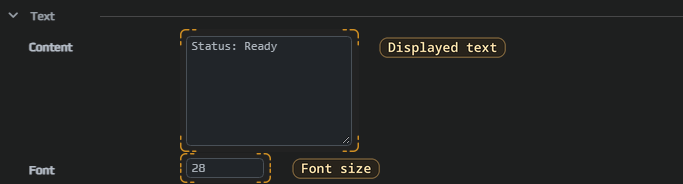
The screenshot shows a single line, Status: Ready, in Content. Enter all three lines of your reminder in that field.
-
Set the overlay as follows. Under Position, temporarily turn Locked off, move the reminder beside your notes and give it enough width and height for all three lines. A starting size of 500 × 120 is suitable; adjust it if text is clipped.
| Setting | Value |
|---|---|
| Text → Font | 24 |
| Text → Size to fit | Off |
| Text → Font Color | White |
| Window → Mode | Overlay |
| Position → Locked | On after positioning |
| Position → Clickthrough | On |
- Leave the aura enabled and EyeAuras unpaused. Select a different aura, then return to Notepad. The checklist should appear. Switch to another application: it should disappear; return to Notepad and it should reappear.
An unlocked overlay or an aura selected in the active editor can remain visible for editing. Lock it and leave that editing context before judging the condition. The position you chose is the overlay's position; this recipe does not bind it to a moving Notepad window.
Window Is Active supplies the foreground condition, Text supplies your checklist, and common overlay options control placement and interaction. Change Content when your preparation list changes; the words themselves do not measure recording progress.