Hear one alert when your own Ready icon appears
Capture a real icon from your application and notify once on a new image match.
Hear one alert for a Ready icon
Use a real, distinctive readiness icon from your own application to trigger one sound when it appears. The check recognizes visible pixels; it does not read the application's internal completion state.
Choose an application you own or are allowed to inspect, with a known icon-present and icon-absent state that you can reproduce yourself. Keep its window restored and use the same UI scale and theme for both states. The Wiki does not supply a Ready application or a sample icon. You need a capture method that shows current pixels and an available audio output.
Capture the source and make the sample
-
Right-click an empty area of the tree, choose New Aura, and name it Ready icon. In Triggers, click + and add Image Search.
-
Choose your application in Target Window, check the selected window information, and set Image Capture Rate to 5 FPS. Open Preview and select the view w/o debug data so diagnostic drawings do not become part of your sample. Confirm that the preview changes with the real application.
-
With the icon visible, use Crop region to bound the area where it can appear. Leave a little space around it, but exclude other similar icons. Keep the effects list empty for this first setup.
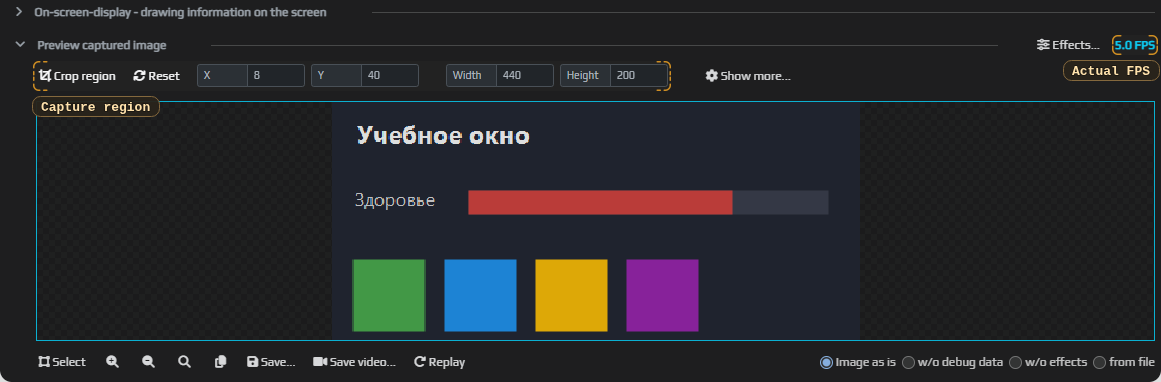
-
In Template source - what to search for, click Load from Preview Pane, then Edit.... In the Image Editor, use Crop to select just the distinctive icon, click Apply crop, then Save. Exclude changing filenames, timers and progress numbers. The sample must fit inside the search region and have the same pixel size as the displayed icon.
-
In Trigger activation conditions, set Match Threshold to 95%, leave Include All Matches off, and click Refresh Once. Check both the match result and found rectangle: it must cover the intended icon. Show the icon-absent state and refresh again; a valid current frame should give no match. Restore the icon and verify the match returns before adding a reaction.
| Setting | Starting value |
|---|---|
| Image Capture Rate | 5 FPS |
| Match Threshold | 95% |
| Include All Matches | Off |
| Effects | Empty |
Notify on the new match
- In On Enter, click +, add Play Sound, choose Audio notification → Ping, and set Volume to 50%. Use its preview button to check the sound. Keep While Active and On Exit empty.
- Leave the aura enabled and EyeAuras unpaused. Begin with a confirmed icon-absent Not Active state, then make your application show the icon. Expect one Ping on entry into Active. Leaving the icon visible should not produce a sound every frame.
- Remove the icon and allow the trigger to return to Not Active. Its next appearance can produce a new Ping.
Image capture establishes the source; the Image Editor isolates the sample; Image Search finds it; Play Sound turns the transition into a cue.
If another location matches, refine the region or the sample before adjusting the threshold. Similarity is a template-comparison score, not a probability that the task succeeded. A different DPI, zoom or theme can change the icon's pixels; reacquire the sample at the intended scale. A black, stale or unavailable capture is not reliable evidence that the icon is absent.