Getting the Process List
How to retrieve the process list
Getting a List of Running Processes
Let’s start with a very simple task: what if we want to get a list of processes running on the local machine?
In regular C#, this is usually done by calling Process.GetProcesses()
However, since we’re working inside the EyeAuras API, we need a slightly different approach that makes it easy to switch between different memory-reading methods.
The simplest option — equivalent to working through Process
using EyeAuras.Memory;

var processes = LocalProcess.GetProcesses();
Log.Info(processes.DumpToNamedTable("Processes"));
After running this script, you should see something like this in EventLog: a list with basic information about running processes, including their ProcessId (or PID) and ProcessName.

Using the LeechCore PMEM driver
Now let’s use a different approach. Instead of LocalProcess as the entry point, we’ll call LCProcess (LeechCore). LeechCore is an excellent library developed by Ulf Frisk.
Internally, it supports different ways of reading memory from a target system—not just the local machine—including, of course, process information.
For the end user, switching between memory-reading methods usually comes down to replacing one class, adding a namespace, and passing different startup arguments.
In this example, we’ll pass the command line -device pmem, which tells the library to load and use the WinPMEM driver.
using EyeAuras.Memory;
using EyeAuras.Memory.MPFS; // обратите внимание на новое пространство имён — LCProcess находится здесь

var processes = LCProcess.GetProcesses("-device", "pmem");
Log.Info(processes.DumpToNamedTable("Processes"));
The output is omitted here, since it should be exactly the same as before.
Using LeechCore with Hyper-V
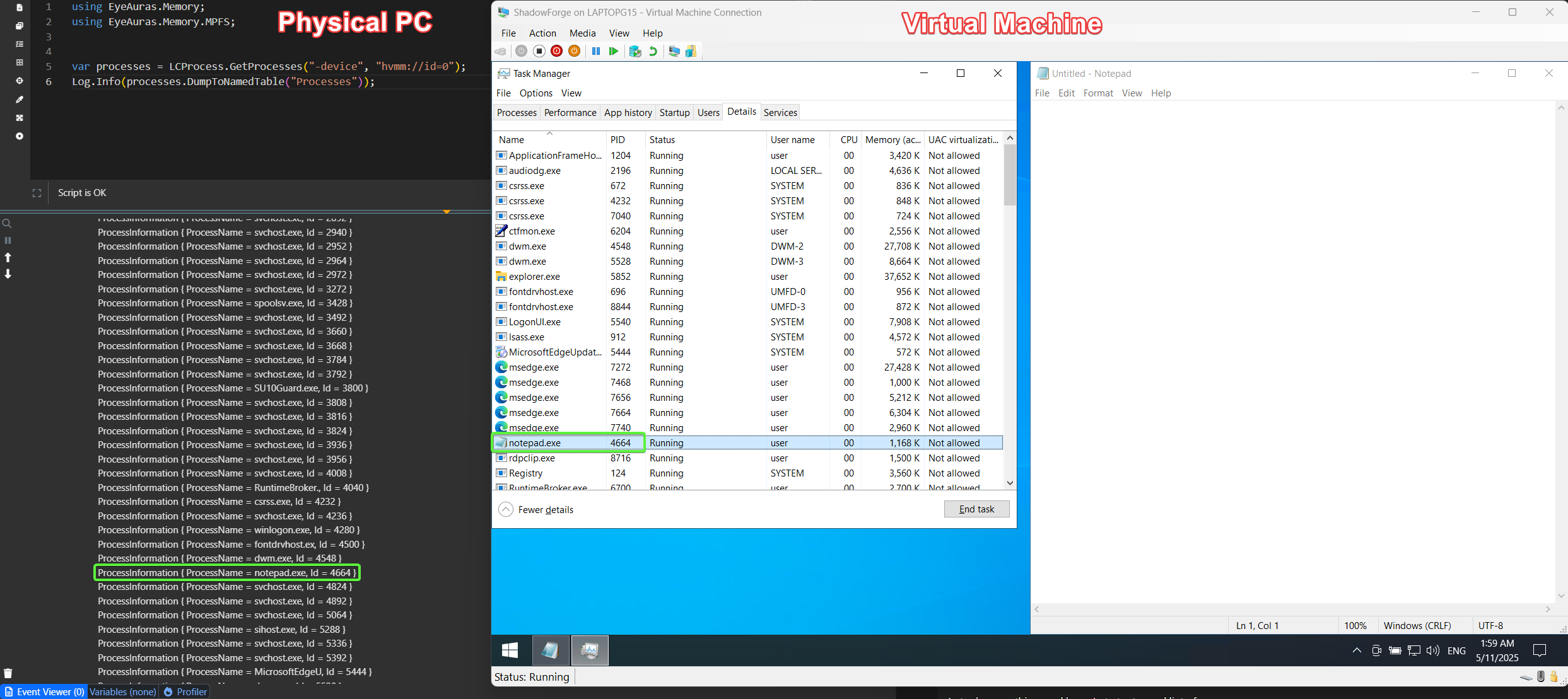
Now let’s do something more interesting: try to get the list of processes running INSIDE a Hyper-V virtual machine (the guest system) from the host.
For simplicity, I’ll use the ID of the first VM I found (id=0). In your case, you may need a different ID.
using EyeAuras.Memory;
using EyeAuras.Memory.MPFS;

var processes = LCProcess.GetProcesses("-device", "hvmm://id=0");
Log.Info(processes.DumpToNamedTable("Processes"));
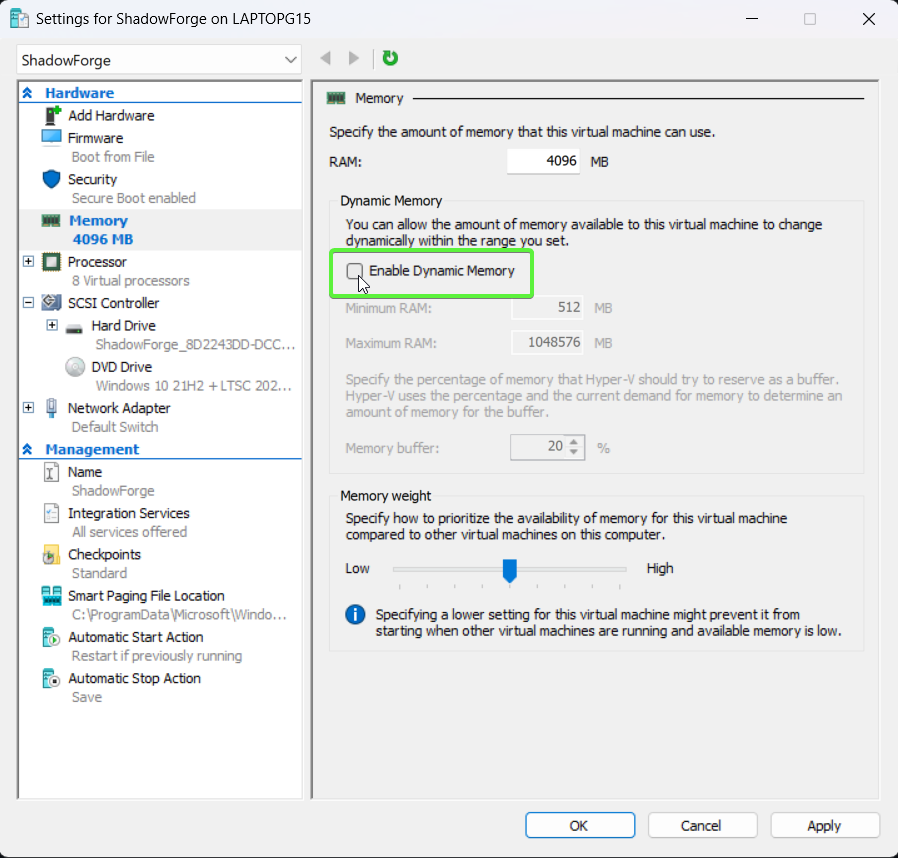
Configuring the Hyper-V VM
Only the most important point here: make sure Dynamic Memory is disabled in the virtual machine settings.
Getting the List of Hyper-V Virtual Machines
At the moment, this requires launching MemProcFS (which is based on LeechCore) separately.
MemProcFS.exe -device hvmm://listvm
Here’s what the output might look like in a simple setup with a single virtual machine:
   Microsoft Hyper-V Virtual Machine plugin 1.2.20240329(beta) for MemProcFS (by Ulf Frisk).

   plugin parameters:
      hvmm://id=<vm id number>
      hvmm://id=<vm id number>,unix
      hvmm://listvm
      hvmm://enumguestosbuild
      hvmm://loglevel=<log level number>
   Example: MemProcFS.exe -device hvmm://listvm

   Virtual Machines:
    --> [id = 0] ShadowForge (PartitionId = 0x2, Full VM)
   You selected the following virtual machine: ShadowForge