Compare a bar’s filled fraction at two sizes
Calibrate an ideal white/black mask and whole-area Mathematical color similarity before showing a half-full reminder.
Keep a half-full indication meaningful at two sizes
Make the same reminder appear for two differently sized bars when each is near half full. Use known prepared images to check the relationship between the white fraction of a binary mask and its average color, rather than assuming a similarity score is always a percentage of area.
Prepare your own six PNGs in an image editor: bars 200 × 20 and 400 × 40 pixels, each empty, half full and full. Empty pixels are pure black RGB(0,0,0); filled pixels are solid green RGB(0,204,0). In each half image, exactly the left half is green. Include no text, borders, rounded corners, gradients or antialiasing. The Wiki supplies no fixture. Display the small and large bars in two distinguishable owned image-viewer windows at 100% scale, with a way to switch each window among its three images without changing their placement. You need working capture and Color Search with Color Replacement - HSV Range.
Capture the whole bar, then make a binary mask
-
Create New Aura → Small bar with only Color Search. Under Capture settings → Target Window, pick the small-bar viewer and set Image Capture Rate = 5. In Preview captured image, verify the correct current image; correct the capture source before measuring a black, stale or wrong frame.
-
Set Crop region → X/Y/Width/Height to exactly the whole small bar's interior, including both filled and empty parts, excluding the viewer and borders. The resulting frame must be 200 × 20. Keep this same crop for all three states. These are source-image coordinates, not desktop position.
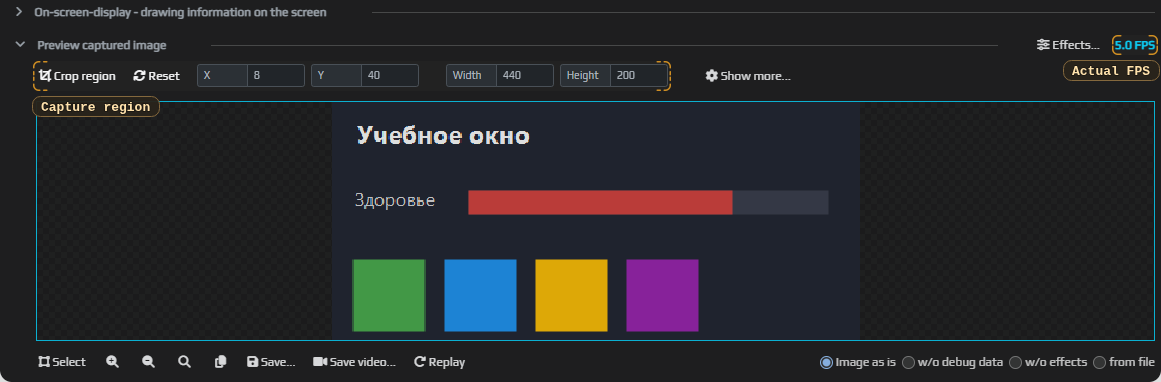
The example shows the X, Y, Width and Height fields. For your bar, enter the rectangle that covers its entire interior.
-
Open Effects... → Add → Color Replacement - HSV Range. Use only this effect over the whole cropped frame, with no resize, blur or other transforms. Set the inclusive ranges H 55–65, S 200–255, V 150–255. Enable both replacement checkboxes: the matching-color swatch is white RGB(255,255,255), the nonmatching swatch black RGB(0,0,0). Keep Invert off if shown. H uses the editor's 0–180 scale, S/V 0–255.
-
In Image as is, inspect the actual output: filled green becomes exact white, empty black stays black. Compare w/o effects, then return to Image as is. If the mask has unintended gray/color pixels or includes other content, fix the source, range or crop before interpreting a fraction.
-
Configure Color Search as below. Enter white explicitly in Target Color; do not copy the average of a half-full frame as the target.
| Setting | Value |
|---|---|
| Comparison Granularity | Aggregate Average Color of Entire Area |
| Comparison Method | Mathematical |
| Target Color | White, #FFFFFF |
| Match Threshold → Min enabled | Min 45%, Max 55%, inclusive |
- Create a separate Large bar aura with Color Search. Repeat the same setup for its own viewer, using its whole 400 × 40 bar as the crop and the identical replacement/comparison settings. Do not accidentally bind both targets to one viewer.
Compare known states before displaying the answer
- Switch both viewers to their empty images: expect an all-black mask and Similarity near 0%. Switch both to half: expect approximately 50%. Switch both to full: expect near 100%. Small and large should have comparable scores for equal fractions, although their absolute white-pixel counts differ. Average-color byte rounding can shift the half value slightly.
- Only after this calibration, add Text to each aura: Content
Small bar near halforLarge bar near half, Font 24, Size to fit off. Use Overlay mode, place separate rectangles and enable Locked. Leave actions empty; select away and leave the editor for normal visibility. - Half-filled bars should show both reminders within 45–55%; empty and full bars should hide them. Restore half for both to show them again. If changing a viewer image changes its placement, correct the crop and repeat all three calibration states before trusting the result.
Effects prepares the exact two-color mask; Color Search compares its whole-area average with white; Text displays a separately entered condition message. For this ideal mask, the average approaches white in proportion to its white pixels. Other imagery, mixed colors, padding, glow, resampling or changing crop coverage breaks that interpretation. Do not widen the threshold merely to hide a failed calibration. This is not a general pixel-count/ratio selector, an internal application value or a probability of correctness. A missing capture can be Unknown rather than a verified empty bar; use the capture guide to inspect it.