Recognize a status line in your own document
Capture your visible English status text, inspect OCR output and show a reminder only when READY matches.
Turn your visible status line into a reminder
Read Status READY from your own visible document and show Review the ready document. Change the document to Status WAITING to hide the reminder. This reads rendered pixels through OCR, not the saved file or an application's hidden state.
Prepare one non-sensitive document in your own text editor. Display those English phrases one at a time in large, clear letters, for example at font size 32 with dark text on a light background. Keep the window restored and readable in capture. You also need an available English OCR engine in OCR Symbols, such as Windows (en) with its Windows OCR language capability, or Tesseract (eng) with compatible, loadable language data. A saved engine name alone is insufficient. If no English entry is available, complete the engine/language preparation in Text Search and restart EyeAuras before this exercise; no API key or paid service is required.
Check the recognized words before the condition
-
Create New Aura → Document ready from the tree's creation menu. In Triggers, click + and add Text Search. Under Capture settings → Target Window, pick your document window and check the selected-window information.
-
Set Image Capture Rate 1 FPS. Open Preview captured image and use Crop region to keep just the status line, with margins around complete letters. Exclude the window title and unrelated document text. Start with an empty effects list.
-
Under Text recognition settings - OCR, choose your available English OCR Symbols entry. Set Scale factor 1 and leave Invert image, Binary threshold and Include text segments off.
-
Show Status READY, click Refresh Once, and inspect Recognized text. It must contain the intended words, not merely a visible source image. Resolve wrong letters, blank capture or language errors before relying on the condition.
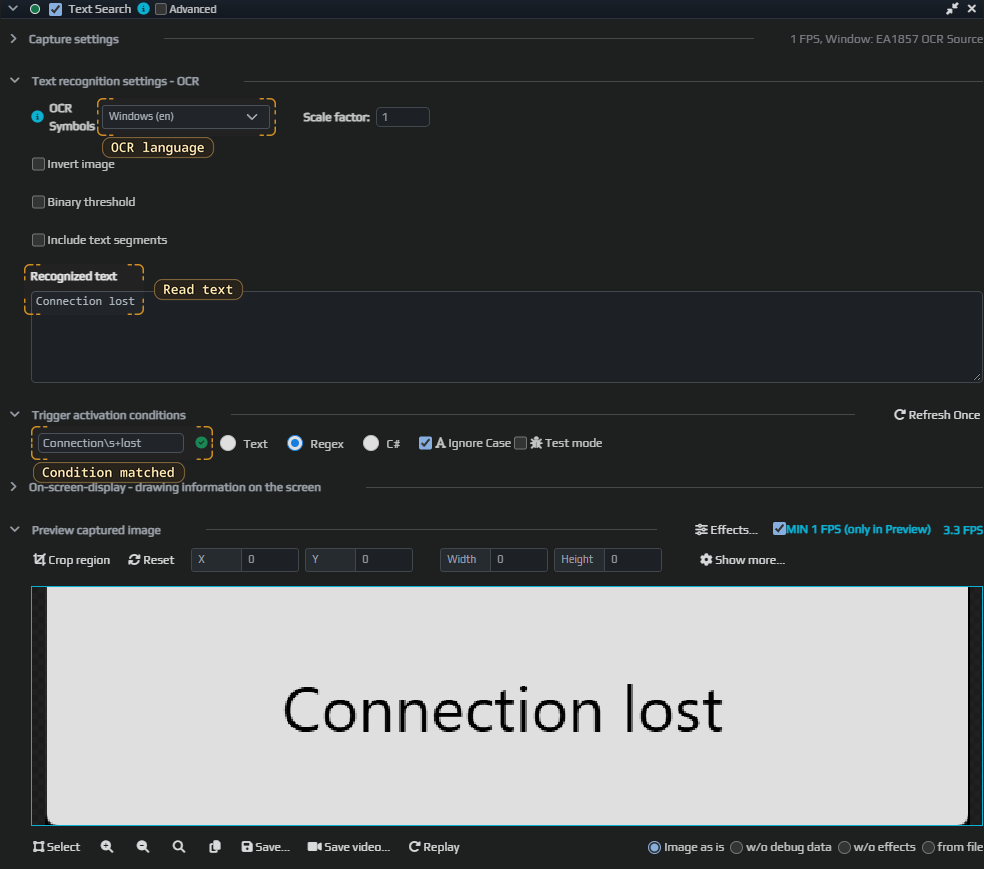
This example reads Connection lost. For your own window, look for Status READY in Recognized text before checking the regex.
| Setting | Starting value |
|---|---|
| Image Capture Rate | 1 FPS |
| Scale factor | 1 |
| OCR Symbols | Your available English engine |
| Invert image / Binary threshold | Off |
| Include text segments | Off for the first match |
Filter and display the result
- In Trigger activation conditions, choose Regex, enter the literal
READYwithout quotes or outer slashes, enable Ignore Case, and keep Test mode off. Regex finds this literal fragment in the whole recognized string. Text mode would require that whole string to equal its expression, including other words. - Refresh with Status READY: expect Active. Change the visible line to Status WAITING and refresh: correctly recognized WAITING should give Not Active. Restore READY and check the match returns.
- Add Overlays → + → Text, set Content to
Review the ready document, Font 24, Size to fit off and Window → Mode → Overlay. Unlock to place a 500 × 80 area, then enable Locked and Clickthrough. Keep actions empty. - Keep the aura enabled and EyeAuras unpaused. Select another aura and leave the editor. READY should show the reminder and WAITING should hide it after a current recognition result. Content remains your entered message; it is not automatically bound to Recognized text.
For a stricter line rule, replace the first literal with Status\s+READY in Regex and repeat both observations. The whitespace rule tolerates spaces or a line break between the words; do not change recognition settings to fix already-correct text with a wrong expression. If you need text-region inspection, enable Include text segments, refresh and view the annotated preview. Current Windows/Tesseract implementations supply word regions; they do not automatically turn the matching phrase into one tight box. Windows word scores here are 1, while Tesseract supplies its own confidence; neither is a calibrated probability of correctness.
Capture, Text Search, text matching and Text each supply a different part of this result. Keep Scale factor 1 initially: segment coordinates belong to the processed OCR image, not desktop click positions. If letters need preprocessing, compare one effect at a time and then check Recognized text again. Unknown or an empty OCR result is not confirmed absence of the visible phrase; inspect the source and engine before treating it as a clean no-match.