Sign in with Google, Twitch, and Discord
Sign in to EyeAuras with a familiar service while keeping your account
Sign in with Google, Twitch, and Discord
Google, Twitch, and Discord let you sign in to EyeAuras without a separate EyeAuras password. Link a service to your account from Profile. If you’re already signed in to the service in your browser, you may not need to enter your details again. The service may still ask you to sign in or confirm access.
If you do not have an EyeAuras account yet, your first service sign-in creates one automatically — no separate registration is needed.
Sign-in happens in your regular browser. If the service asks for a password, you enter it only on the Google, Twitch, or Discord website; EyeAuras never sees it. After approval, you’ll be signed in to EyeAuras, but the app won’t receive the service’s password or access tokens.
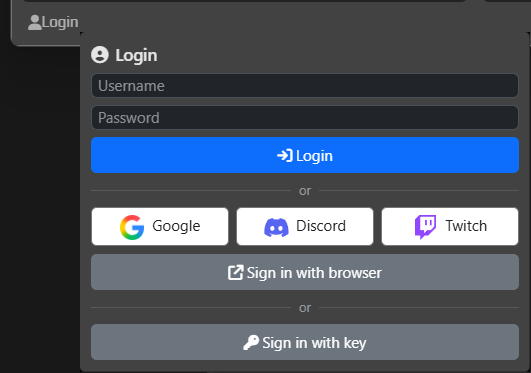
How to sign in
- Open the sign-in window in EyeAuras.
- Choose Google, Twitch, or Discord. The regular browser option uses your active EyeAuras website session, if you have one.
- Finish signing in on the EyeAuras website and approve the app’s request.
- Return to the app. EyeAuras stores your sign-in using Windows protection, so you usually won’t need to sign in again next time.
The sign-in window may close when the browser opens. Reopen it to continue or cancel the request. If the request expired or the app restarted before approval, start again.
Keep your existing account
If you already have an EyeAuras account with licenses and history, sign in to it on the website first. Then link your chosen service from Profile. Google, Twitch, or Discord sign-ins will now return you to the same account.
EyeAuras can link a service automatically when this option is enabled and the verified email matches exactly one EyeAuras account. If several accounts match, EyeAuras won’t merge them.
If the email already belongs to an account but EyeAuras can’t link the service safely, you won’t be able to sign in through it. Sign in to the correct EyeAuras account and link the service from Profile. A new account is created only when the service isn’t linked and there is no verified email, or that email doesn’t belong to an existing EyeAuras account.
Sign out or switch accounts
Logout ends only the EyeAuras session in the app. It doesn’t end your EyeAuras website session or the chosen service’s browser session.
To switch accounts, first switch or sign out on the EyeAuras website and, if needed, on Google, Twitch, or Discord. Then start sign-in again from the app.
Other ways to sign in
You can still sign in with your EyeAuras username and password or a license key. These options are useful if your chosen service is temporarily unavailable.
The available buttons depend on the website settings. A new sign-in requires a connection to the EyeAuras server and the chosen service’s website.
Password and username
Know your current EyeAuras password? Open Profile and enter your current and new passwords. Google, Twitch, or Discord confirmation is not required. You’ll need to sign in again afterward.
If you don’t have a password yet or have forgotten it, sign in again through one of the currently available services already linked to your account. Then select Create or Reset. EyeAuras will show your username and new password after creating or resetting it. You won’t be able to view the password again later, so save both immediately.
You can’t change your username yet. We plan to revisit this after sign-in and password recovery are stable. There is no timeline yet.